Refrigeration & air conditioning software
Every feature.
Every part of the job.
Explore what you can do with REFM8, from the first customer enquiry to the records behind a completed visit.
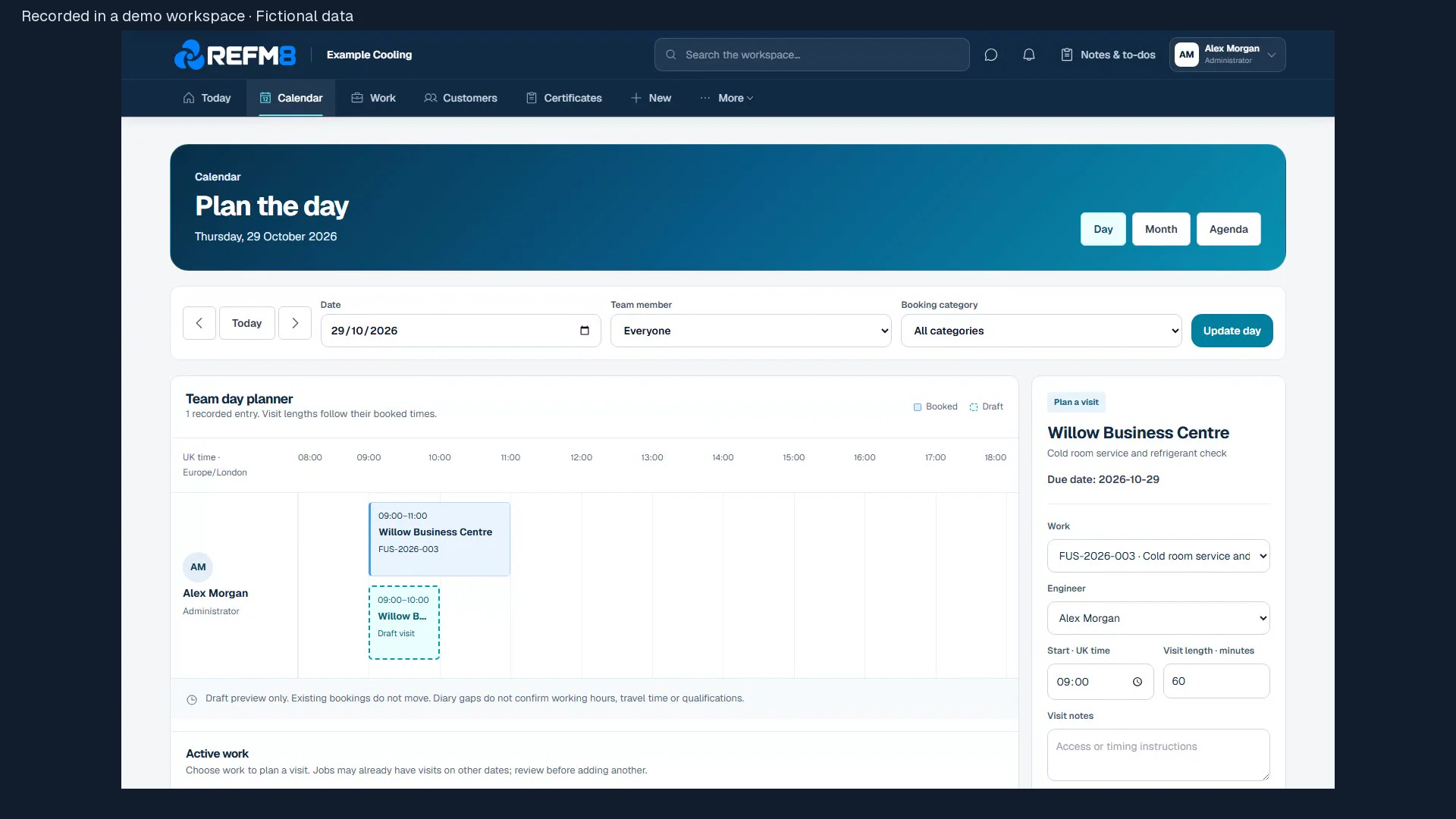
One place to follow the work.
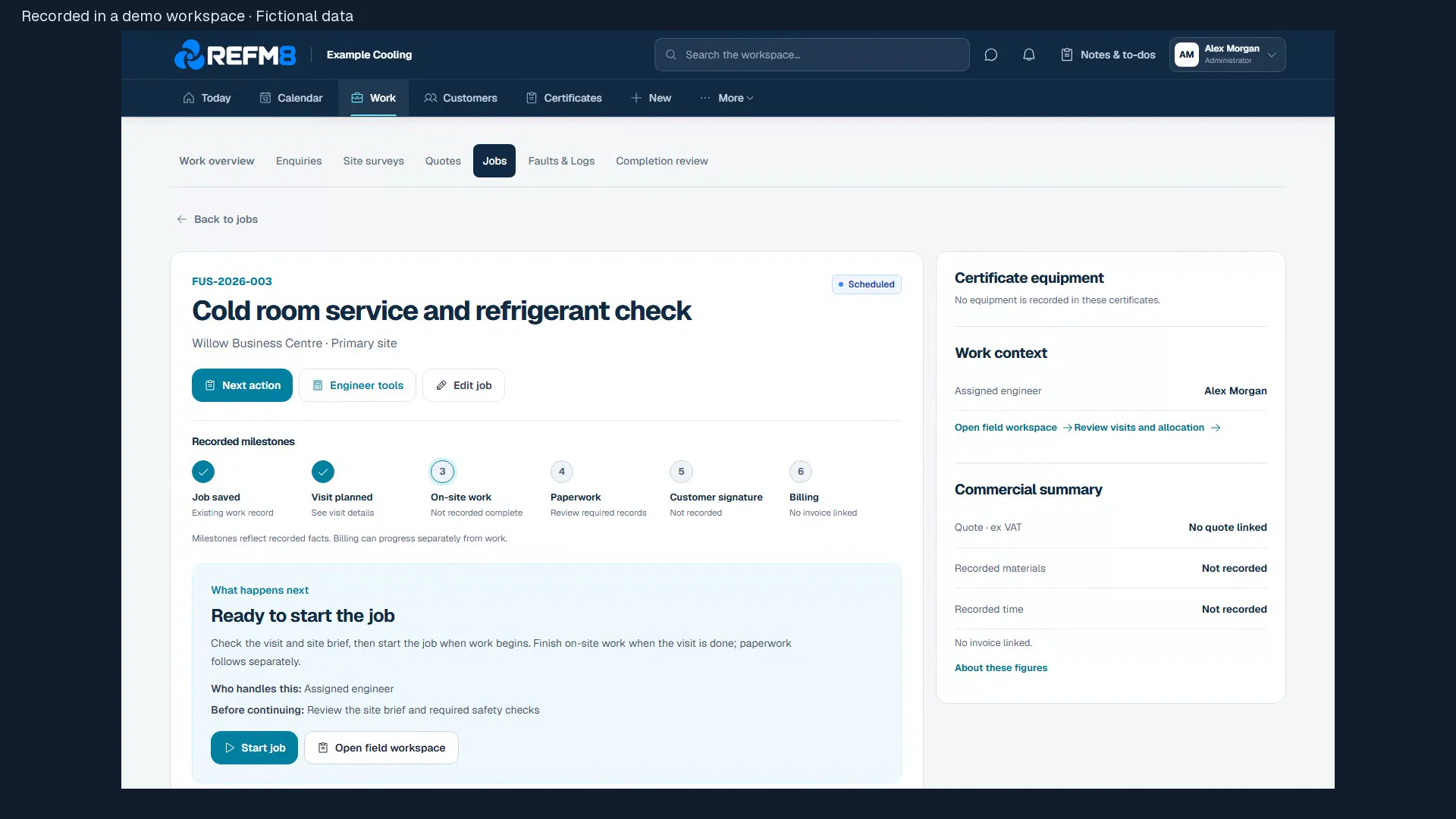
One connected workflow.
The complete feature guide
Find what you need.
See what it can do.
Open a feature for the detail. Access follows your role and company setup; any additional requirements are explained alongside the feature.
35 feature areas to explore
From enquiry to agreement
Win work
Keep customer conversations and proposals connected.
Back to feature searchCustomers and sitesKeep the people and places behind each job together.
For: Office and administrators; authorised staff can see relevant work.
What you can do
- Customer records
- Maintain contact, company, billing and operational notes.
- Site details
- Record addresses, contacts, access, parking and plant locations.
- Work history
- See surveys, routine visits and detailed jobs linked to a site.
- Start work
- Create a quick visit or detailed job from the site.
- Customer context
- Find related quotations, documents and activity.
Enquiries and leadsGive incoming work a clear next step.
For: Office and administrators.
What you can do
- Lead queue
- Review active enquiries and records marked as not leads.
- Website enquiries
- See unbooked enquiries until they move into a survey, quote or job.
- Response priorities
- Review response targets and outstanding follow-up.
- Survey handoff
- Carry enquiry details and available attachments into a booked survey.
Installation surveysCapture the site details that shape an installation.
For: Office staff book surveys; authorised engineers record findings.
What you can do
- Book a survey
- Record the customer, property, engineer and appointment.
- Room measurements
- Enter dimensions and calculate an indicative heat load with adjustable assumptions.
- Installation layout
- Record proposed indoor units, condensers, routes and positions.
- Site evidence
- Keep photos, electrical details and customer requirements together.
- Scope and materials
- Save assumptions, exclusions and a materials list for office review.
- Supplier requests
- Prepare a request from the survey; sending requires company setup.
Quotes and customer approvalBuild a quotation and review it before sending.
For: Administrators prepare quotations; eligible customers review their own.
What you can do
- Create a draft
- Start from a customer, survey or supplier PDF.
- Scope and equipment
- Describe the work and proposed equipment.
- Customer pricing
- Set materials, labour, extras, discounts and tax and review totals.
- Preview
- Save the draft and inspect the customer PDF.
- Customer decision
- Use the supported portal or contractor approval workflow.
- Accepted work
- Carry the accepted scope into a job.
Customer portalGive invited customers access to their own eligible records.
For: Company administrators and office staff manage access; customers see their own account.
What you can do
- Quotes and contracts
- Review eligible quotations and supported signing steps.
- Jobs and appointments
- See permitted work and respond to supported date proposals.
- Equipment
- Review equipment associated with the account.
- Released documents
- Open handover packages selected and sent by the company.
- Invoices and certificates
- See eligible official invoice PDFs and commissioning acknowledgements.
From diary to site
Plan and deliver
Organise visits and give the team the details they need.
Back to feature searchJobs and schedulingPlan the work and keep its progress visible.
For: Office and administrators manage work; engineers use permitted field views.
What you can do
- Job records
- Create a detailed job with customer, site, scope and assignments.
- Day planner
- Review booked visits on a team timeline and open the related work.
- Calendar views
- Navigate day, month and agenda views.
- Booking checks
- Review recorded overlaps and capability information before booking.
- Field progress
- Record visit milestones, time, materials, checklists and signatures.
- Shared updates
- Keep notes and evidence with the job.
Faults and call-outsKeep a clear history of a reported problem.
For: Authorised operational staff and managers.
What you can do
- Fault cases
- Record the issue, priority, details and when it occurred.
- Linked work
- Optionally connect a case to completed work or a commissioning certificate.
- Case log
- Keep calls, observations, resets and resolutions in sequence.
- Status
- Track open, monitoring and resolved cases.
- Find a case
- Search and filter by case details and status.
Servicing and PPMKeep recurring service work in view.
For: Office and administrators plan work; engineers carry out assigned visits.
What you can do
- Service plans
- Link annual plans to a customer and site with a next service date.
- Service schedule
- Review upcoming visits, bookings and evidence.
- Visit planning
- Choose an engineer and appointment time.
- Checklists
- Maintain reusable tasks for different assets.
- Pricing and capabilities
- Record service prices and engineer capability information.
Prepared offline field workTake selected work with you when signal is uncertain.
For: Authorised field users on an approved device.
What you can do
- Prepare work
- Choose accessible visits, jobs and surveys and their available resources.
- Field updates
- Queue supported notes, milestones, time, materials and checklists.
- Files and signatures
- Capture supported evidence with visible queue status.
- Engineering sessions
- Keep supported measurements and calculations for later sync.
- Recovery
- Review pending or failed work and resolve it under the original account.
- Mobile access
- Use responsive views and install the web app where supported.
Team and job timeSee who is doing the work and record time against it.
For: Administrators manage team details; authorised staff record job time.
What you can do
- Job time
- Record time against accessible work.
- Labour costs
- Review recorded labour alongside job materials.
- Workforce view
- See team work based on diary and job records.
- Qualifications
- Keep supplied certificates and expiry details with staff profiles.
- Engineer profile
- Maintain relevant profile and vehicle details.
Subcontractor workLimited availabilityShare a scoped brief with an eligible subcontractor.
For: Administrators manage offers; subcontractors access their own work area.
What you can do
- Onboarding checklist
- Track business details, insurance, qualifications and agreement status.
- Evidence review
- Review submitted documents and expiry information.
- Job offers
- Offer a scope and rate for acceptance or decline.
- Work brief
- Share the permitted job details and applicable approved RAMS.
- Job evidence
- Allow the subcontractor to provide supported evidence and material details.
Risk assessments and method statementsPrepare a site-specific safety pack for the work.
For: Administrators and office staff prepare and approve; authorised workers view packs.
What you can do
- Starting templates
- Choose a template for installation, maintenance, repair or decommissioning.
- Site context
- Record the work area, equipment, hazards, permits and contacts.
- Method and controls
- Edit steps, responsibilities, PPE and emergency arrangements.
- Approval
- Keep preparer, approver and version details with the pack.
- Open the retained job-specific document.
- Existing PDFs
- Import for review where the optional extraction service is configured.
Visit outcomes and follow-upGive the next action a clear reason and an owner.
For: Assigned staff record the visit; office staff and administrators review follow-up.
What you can do
- Visit outcome
- Record resolved, parts needed, incomplete diagnosis, no access or unsafe work.
- Parts required
- Describe the item, quantity, equipment and whether the requirement is suspected or confirmed.
- Named next action
- Assign a follow-up owner and keep the reason and evidence with the visit.
- Return to site
- Link genuine order, receipt and later booking records as the follow-up progresses.
- Unsafe work
- Retain the stop and require the authorised mitigation and restart decision before work resumes.
Equipment lookup and photo evidenceFind the right asset and explain what you saw on site.
For: Authorised staff with access to the job or equipment.
What you can do
- Asset lookup
- Find accessible equipment using its recorded identity or supported code.
- Camera code scan
- Use supported barcode or QR scanning where the browser and camera permit it.
- Manual fallback
- Enter or search the equipment details when scanning is unavailable.
- Job photographs
- Keep relevant photos with the work they document.
- Photo annotations
- Add a visible label or solid redaction to a reviewed photo copy while retaining the original.
Dictation and reviewed note assistanceBrowser or service support requiredCapture an update, then check the words before saving.
For: Administrators, office staff and engineers who can access the job.
What you can do
- Type or dictate
- Enter the note normally or use supported speech input.
- Request a proposal
- Ask for punctuation assistance only when you want it.
- Compare the wording
- Review the original note alongside the suggested punctuation.
- Choose the result
- Use the suggestion or keep the original; nothing is silently accepted or sent to a customer.
- Retained context
- Keep accepted assistance evidence with the saved note. This is not automated diagnosis or technical authorship.
Evidence that stays connected
Records and resources
Bring technical information and supporting documents into the job.
Back to feature searchCertificates and technical paperworkPrepare structured technical records and keep their source evidence.
For: Authorised engineers complete records; office and administrators manage templates and registers.
What you can do
- Certificate types
- Prepare commissioning, pressure test, F-Gas, service and decommissioning records.
- Job context
- Use an accessible job or record complete external subcontract details.
- Readings and checks
- Record service checks, measurements and recommendations.
- Draft and finalise
- Reopen drafts and produce a final locked PDF.
- Company templates
- Administrators can manage reusable layouts and wording.
- Customer acknowledgement
- Request supported commissioning acknowledgement from the intended customer.
F-Gas and refrigerant recordsKeep technical records and refrigerant movements in context.
For: Office and administrators review the register; authorised staff record movements.
What you can do
- Activity register
- Review finalised technical records and refrigerant events.
- Search and filter
- Find entries by date, activity, job, site, equipment or refrigerant.
- Movement ledger
- Record actual charge and recovery against the relevant work and asset.
- Quantity totals
- Review filtered quantities and missing information.
- Environmental factors
- Use available verified factors for displayed environmental calculations.
Equipment historyFollow an asset through its recorded working life.
For: Office and administrators; customers see their permitted equipment.
What you can do
- Asset details
- Keep make, model, serial, location and installation context.
- Service history
- Review recorded visits and condition notes.
- Source documents
- Open linked commissioning and service paperwork.
- Engineering evidence
- Review related refrigerant movements and saved calculations.
- Warranty information
- See the warranty dates recorded for the equipment.
Documents and handoversKeep files with the work and choose what to share.
For: Authorised staff manage job files; customers see released records.
What you can do
- Job files
- Upload and find job documents by reference or filename.
- Customer documents
- Keep relevant customer-level files separately.
- Prepare a package
- Select the documents appropriate for a handover.
- Review and release
- Approve the selected package before sending it.
- Acknowledgement
- Record supported customer acknowledgement of a received handover.
Engineering calculatorsKeep common calculations close to the job.
For: Administrators, office staff and engineers with access.
What you can do
- Refrigerant P/T
- Use supported pressure-temperature lookup and superheat or subcooling calculations.
- System readings
- Capture manual measurements in a job-related session.
- Charging and recovery
- Calculate quantities from recorded cylinder and system data.
- Testing
- Record pressure, temperature and evacuation readings.
- HVAC calculations
- Use air, psychrometric, load, electrical and unit-conversion tools.
- Favourites
- Keep frequently used tools close at hand.
Purchase orders and materialsFollow purchasing from order to recorded cost.
For: Office staff and administrators.
What you can do
- Purchase orders
- Create orders with supplier, job, delivery details and item costs.
- Approval
- Request and record the appropriate order approvals.
- Supplier delivery
- Review the order message and its delivery result.
- Goods received
- Record partial receipts and backorders against order lines.
- Job materials
- Keep actual materials and supplier costs with the work.
Quality and completion reviewReview the evidence behind completed work.
For: Authorised office staff and administrators.
What you can do
- Completion queue
- See submitted jobs and returned work waiting for an office decision.
- Evidence checklist
- Check the evidence required for that specific job and identify missing records.
- Approve or return
- Approve eligible completion or return clear instructions for rework.
- Retained review
- Keep the review decision and supporting job evidence together.
Stock and material custodyFollow quantities across your stores, vans and staff.
For: Employee office staff and administrators manage locations; engineers use permitted custody locations and jobs.
What you can do
- Items and locations
- Set up quantity-based items and company stores, vans or named staff locations.
- Available stock
- See on-hand quantities, held stock and the amount still available.
- Transfers and corrections
- Move actual quantities between locations and retain reasons for opening adjustments.
- Reserve for a job
- Hold stock for accessible work and release material no longer required.
- Usage and returns
- Record actual use and link unused returns to the original usage.
- Goods received
- Credit accepted purchase receipts to a stock location without counting the same receipt twice.
Company inspection formsBuild forms around your own procedures and working records.
For: Administrators publish templates; authorised staff complete forms.
What you can do
- Own templates
- Create a blank form or tailor starter vehicle and tool-inspection questions.
- Question types
- Use text, numbers, dates, times, choices, yes/no and inspection checks.
- Relevant work
- Use a form on its own or link it to an accessible job or equipment record.
- Conditional questions
- Show relevant follow-up questions based on supported earlier answers.
- Draft and acknowledge
- Save a draft, then explicitly acknowledge the completed answers before finalisation.
- Retained report
- Open the final HTML or PDF report with its original answers, template version and issuing identity.
Administration and oversight
Run the business
Manage the financial records and company controls around the work.
Back to feature searchInvoices and recorded paymentsPrepare operational invoice details and retain official evidence.
For: Administrators and authorised office staff.
What you can do
- Invoice drafts
- Prepare quotation-based or custom invoice figures.
- Deposits and balances
- Review amounts due across the work.
- Official PDF
- Attach the invoice issued by your own accounting software.
- Payment records
- Record payments and adjustments against the invoice.
- Customer access
- Make eligible official invoice information available to the customer.
Operational ledgerConfiguration requiredReview controlled operational financial records.
For: Company administrators.
What you can do
- Periods
- Manage fiscal-period controls.
- Posting review
- Check completeness of operational postings.
- Trial balance
- Review the available balance and controls.
- Corrections
- Record reasoned corrections to financial entries.
Receipts and purchase paperworkKeep purchase evidence ready for review.
For: Office staff and administrators.
What you can do
- Receipt storage
- Retain original purchase documents.
- Search
- Find receipts using available dates and filters.
- Review
- Check extracted details where the optional service is enabled.
- Accountant pack
- Prepare supported receipt evidence for accountant review.
Workspace searchFind the records your role can access.
For: Administrators, office staff and engineers; results vary by role.
What you can do
- Search together
- Find permitted customers, sites, jobs, quotes, certificates and equipment.
- Identifiers
- Search supported names, addresses, references, models or serial numbers.
- Grouped results
- Browse results by type and open further pages.
- Access
- See destinations appropriate to your permissions.
Operational reportsReview the counts and work indicators available to your team.
For: Authorised managers and office users.
What you can do
- Enquiries and follow-ups
- See open leads and overdue follow-ups in the operations view.
- Workload
- Review recorded booked and completed job counts.
- Quotation value
- See the recorded value of live quotations.
- Service exceptions
- Identify overdue services needing attention.
- CSV export
- Download the supported operations report for further review.
Company and access controlsSet up your company and manage who can work in it.
For: Company administrators.
What you can do
- Company identity
- Maintain company and trading details used by supported records.
- Staff access
- Prepare invitations and manage roles and active memberships.
- Role boundaries
- Give staff access appropriate to their work.
- Offline devices
- Review and revoke authorised device access.
- Personal notes
- Use browser-local notes and to-dos where available; they are not automatically shared.
- Company records export
- Request the supported company records export with record relationships and file metadata. Large requests may need managed support; file metadata is not the original file itself.
Email and accounting handoffUse your own company identity and accounting process.
For: Administrators configure company services; authorised staff use ready workflows.
What you can do
- Managed email
- Use supported outbound email where enabled and verified.
- Company mailbox
- Connect a supported company mailbox where configured.
- Sender readiness
- Check setup before supported customer and supplier messages.
- Accounting handoff
- Prepare operational figures and retain official invoices from your own software.
Reviewed timesheetsKeep actual time ready for a clear office review.
For: Employee staff record time; office staff and administrators review eligible submissions.
What you can do
- Suggested intervals
- Use complete recorded travel and work milestones as a starting point.
- Review actual time
- Adjust start, finish, category and notes before saving the draft.
- Non-job time
- Record breaks, paperwork, other work and home travel separately.
- Submit and decide
- Submit time for approval or return with a review note.
- Weekly history
- Review draft, submitted, approved and returned records with overlap checks.
Leave and staff availabilityReview requests and see the effect on the working diary.
For: Employee staff request leave; office staff and administrators manage allowances and decisions.
What you can do
- Allowances
- Set annual days, working weekdays, carryover and reasoned adjustments.
- Leave requests
- Request supported leave types with full or half first and last days.
- Separate balances
- See approved holiday, pending reserved days and remaining available allowance.
- Review and cancellation
- Approve, reject or cancel through the leave workflow with the required decision notes.
- Diary availability
- Show approved absence as neutral unavailability, keeping personal request details private.
Staff expense claimsKeep a claim with its receipt from draft to office review.
For: Employee staff maintain their own claims; office staff and administrators review submissions.
What you can do
- Job-linked draft
- Enter the actual date, category, description, amount and supported currency.
- Receipt evidence
- Keep the original uploaded job receipt with the claim.
- Optional receipt suggestions
- Where configured, review suggested document details and explicitly copy them into an editable draft.
- Submit for review
- Check the draft, then submit a retained snapshot for the office decision.
- Approve or return
- Approve for manual finance handoff or return the claim with a reason for correction.
- Retained history
- Keep submission and review evidence, with controls against duplicate active receipt submissions.
Office and engineer workspacesGive each role a practical starting point for the day.
For: Office staff and administrators have dashboard layout controls; engineers use their focused Today view.
What you can do
- Office overview
- Bring permitted company work and follow-ups into the management dashboard.
- Choose sections
- Show or hide supported dashboard sections.
- Arrange the layout
- Reorder sections and choose full or half widths.
- Saved preferences
- Save the supported layout for your account and company or use a preset.
- Engineer Today
- Open assigned work and the related field information from a focused daily workspace.
Useful details
A clearer picture.
Before you get started.
Can everyone see every feature?
No. Access depends on your company, role and the records you are authorised to use. Some features also need company setup.
Can engineers work without a signal?
For supported tasks, prepare an authorised device and the selected work online before losing signal. Packs cover up to 24 selected targets and last up to seven days. Reconnect to submit queued work; server-backed stock, expense reviews and company administration still need a connection.
Do calculations replace an engineer’s judgement?
No. Calculations use the inputs and assumptions provided. A competent person should check measurements, suitability and the final decisions.
What setup is needed to send customer documents?
Your company needs the appropriate identity, sender and portal settings. Portal quotations also need the applicable company terms. A saved draft is not a sent document.
Does REFM8 replace accounting software?
Your business uses its own accounting software to issue official invoices. REFM8 can retain the official PDF and recorded payments alongside its operational records; direct accounting connections are not generally available.